Pages
Layouts
Choose a built-in page layout for each Page with the layout front matter property.
A page layout is a built-in arrangement of a Page's regions: the left sidebar, the right sidebar, the width of the content column, and whether a page header renders above the content. Select a layout with the top-level layout property in a Page's front matter.
---
title: "Overview"
layout: "guide"
---
| Layout name | Left sidebar | Content | Right sidebar | Page header |
|---|---|---|---|---|
guide | configured navigation | narrow, centered | built-in table of contents | built-in |
reference | configured navigation | narrow, centered | none | built-in |
wide | configured navigation | wide, centered | none | built-in |
center | none | narrow, centered | none | built-in |
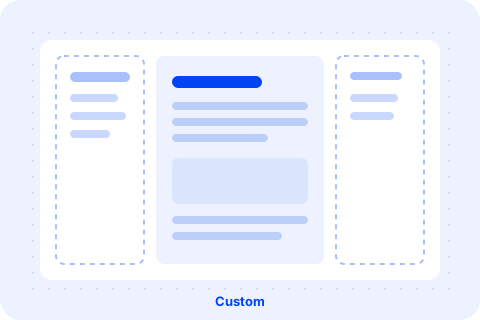
custom (default) | Snippet only, if declared | full bleed, no padding | Snippet only, if declared | none |
A Page that omits layout renders with the custom layout. A Page that names a layout which does not exist also renders with custom, and logs a message to the browser console listing the valid names.
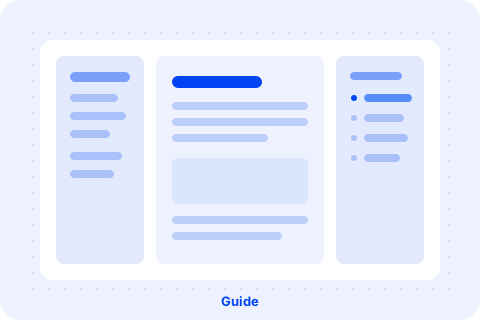
guide
The three-column documentation shape: the configured navigation on the left, the built-in Page TOC on the right, and content between them. guide renders the built-in page header.
Use it for long-form documentation and guides, where readers benefit from both a way to browse sibling Pages and a way to jump to a section of the current one.
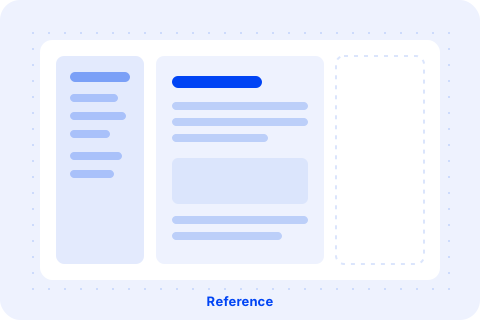
reference
The same as guide, without the table of contents. The space a table of contents would occupy stays reserved, so reference shares the exact same content centerline as guide and center. reference renders the built-in page header.
Use it for content that does not need a table of contents, such as a short conceptual Page, while keeping the Page visually aligned with the rest of your guide content.
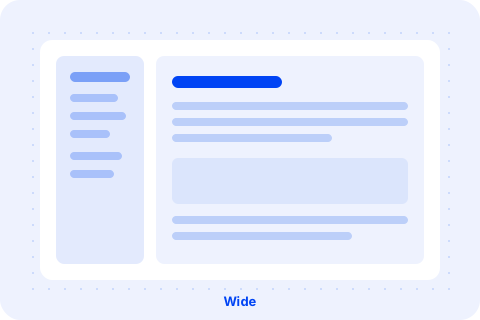
wide
The same as reference, except the content also claims the space the table of contents would occupy, so its column is wider. When the left sidebar has nothing to render, its column collapses, and the content expands into the space. wide renders the built-in page header.
Use it for content that needs more horizontal room than a prose measure allows, such as a wide table or a generated API reference.
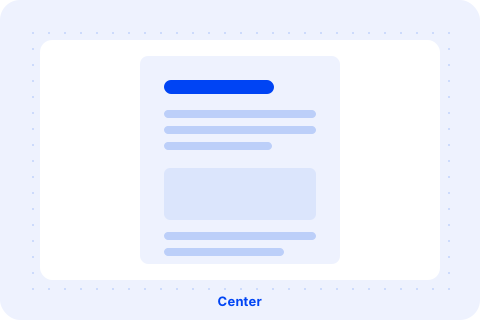
center
A single column of content, centered, with no sidebars. center renders the built-in page header.
Suited to release notes, articles, or any Page that reads best as one column of text with nothing competing for attention on either side.
custom
The default layout. It has no built-in chrome and no page header: you build the whole page in the body, and optionally add sidebars with Snippets as described in Layout Options. Content is full bleed, with no padding reserved for a content column.
Reach for custom when a Page needs a layout the built-in set does not offer, such as a landing page or a hero-led marketing Page.
The guide, reference, and wide layouts render the Portal's navigation in the left sidebar. The navigation is configured for the whole Portal through the /v3/portals/{portalId}/customization/navigations endpoint.
Each navigation entry in the configuration claims a set of routes by its show_on_path_prefixes. A visitor on a matching route sees that entry's groups in the left sidebar, and the entry with the longest matching prefix wins.
show_on_path_prefixes is the list of route paths the entry claims, such as ["/guides"] for every route under /guides. An entry can claim several paths at once. Use ["/"] for an entry that applies everywhere no more specific entry matches.name is the name for the navigation entry, primarily used to identify the navigation configgroups render as link groups in the sidebar. Each group has an optional header and its links.links each carry a text and an href. A link can nest children up to three levels deep, where the top-level link is level one. A link can also render expanded initially, and set external to open in a new tab.To clear the navigation for a section of Pages instead of replacing it, configure an entry whose show_on_path_prefixes includes the section's path, and pass an empty array as its groups. The entry claims the path and all of its child routes, so no navigation renders there, even when a broader entry such as / also matches the route. On guide and reference, the content column keeps its position.
{
  "data": [
    {
      "show_on_path_prefixes": ["/"],
      "name": "Navigation",
      "groups": [
        {
          "header": "Getting started",
          "links": [
            { "text": "Overview", "href": "/getting-started" },
            { "text": "Installation", "href": "/getting-started/installation" },
            { "text": "Local development", "href": "/getting-started/local-development" }
          ]
        },
        {
          "header": "Making Requests",
          "links": [
            {
              "text": "Authentication methods",
              "href": "/guides/authentication",
              "children": [
                { "text": "API keys", "href": "/guides/authentication/api-keys" }
              ]
            },
            { "text": "Rate limits", "href": "/guides/authentication/rate-limits" }
          ]
        }
      ]
    }
  ]
}
When nothing is configured for the route a visitor is on, or the matching entry has an empty groups array, the left sidebar renders nothing. On guide and reference, the content column keeps its position. On wide, the content column expands into the left sidebar's space.
guide, reference, and center place their content on exactly the same centerline, so navigating between Pages that use them never shifts the content or the page header sideways. This holds whether or not a Page actually has a table of contents, and whether or not any navigation is configured for the left sidebar: both sidebar spaces keep their size either way.
wide is the deliberate exception. It claims the table of contents space for content, so its column is wider. When the left sidebar has nothing to render, the content also expands into the left sidebar's space.
guide, reference, wide, and center each render a page header above the content, built from the front matter that every Page declares for its SEO metadata, plus one optional property:
---
title: "Getting started"
description: "Everything you need to make your first request."
tagline: "Quickstart"
layout: "reference"
---
title renders as the Page's h1.description renders below the title.tagline is optional. It renders as a short label above the title. Omit it and no label renders.Each region a layout renders (its sidebars and its page header) can be replaced with a Snippet, through the layout-options front matter property. A Snippet always takes the region from the layout's built-in content. A region can also be set to false to hide it, so the Page renders without that region.
---
title: "API reference"
layout: "guide"
layout-options:
  sidebar-right: "my-cta-snippet"
---
A replacement Snippet renders in the same position as the built-in content it replaces, with the same width. You cannot add a region a layout does not have. To hide a region on a Page, set it to false: the layout then renders nothing there, including on smaller screens, where the region's drawer toggle disappears too. The layout keeps its shape, so the content column keeps its position on guide and reference.
---
title: "Wide tables"
layout: "wide"
layout-options:
  header: false
---
See Layout Options for the regions each layout supports, and how to write the Snippets.